Turn your idea into a 3D illusion design, ready to engrave.
Describe what you want, or add a photo. Studio creates an original 3D illusion design, then turns it into a file your laser can engrave and cut.
- No drawing
- No design skills
- No AI prompts to write
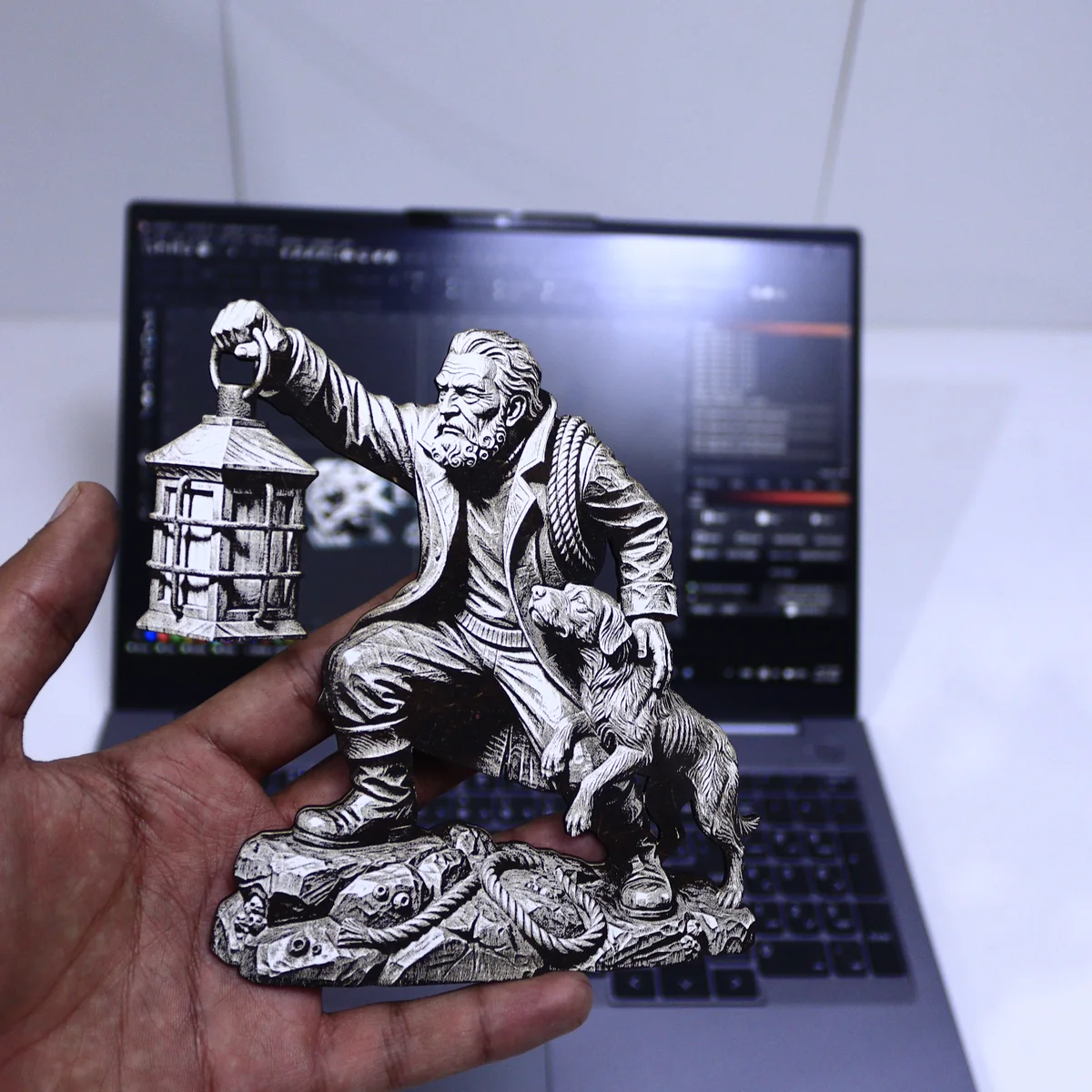 Designed in Studio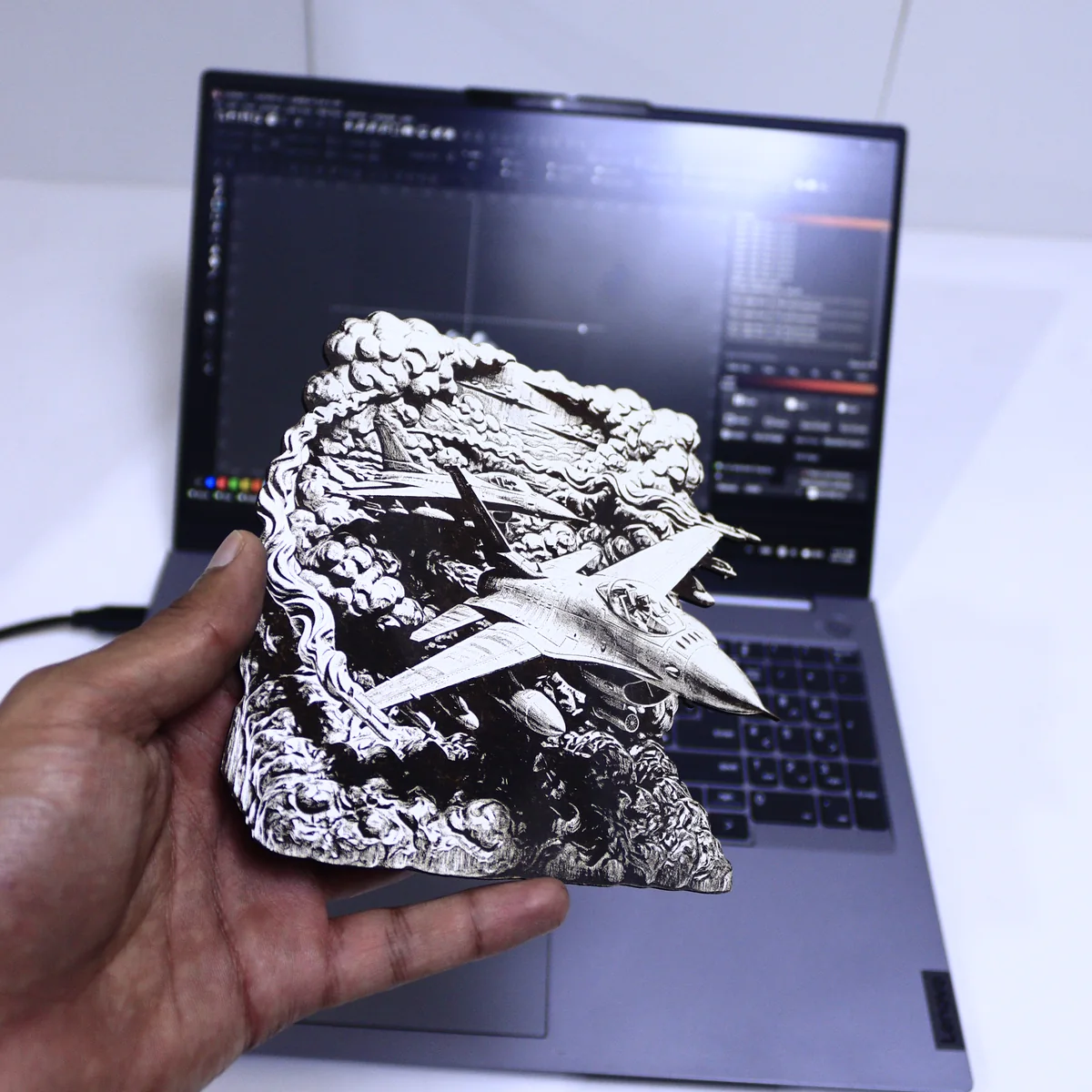
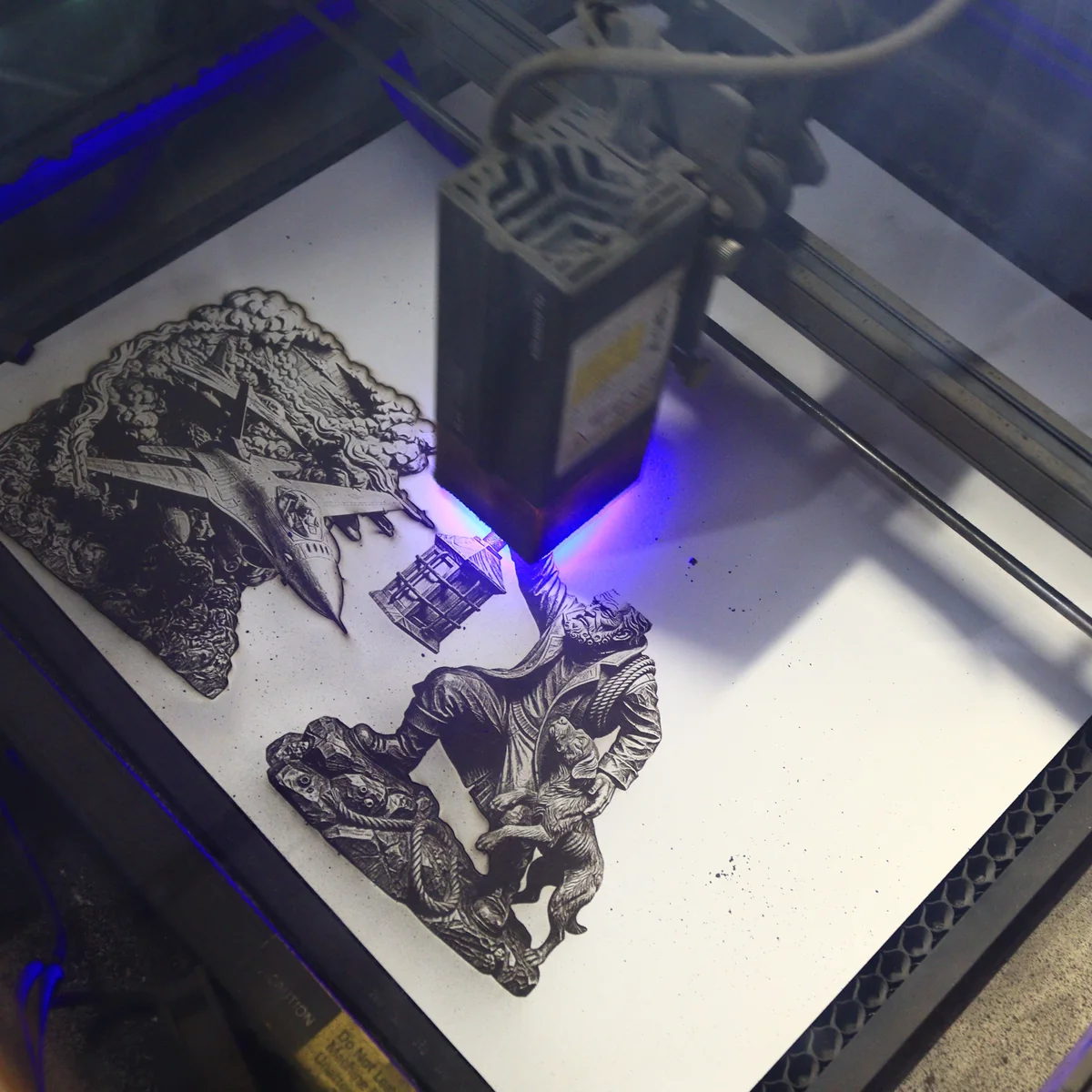
Free to try · works with the laser you already own
“What program do you use?” Now there’s an answer.
Ever since people started seeing my 3D illusion engravings, the same question has kept landing in my inbox and comments: what program makes these?
For a long time, the honest answer was that there wasn’t one. It was a workflow: writing detailed AI prompts, picking the images that would actually engrave well, removing backgrounds, tracing cut lines, and a lot of trial and error on real wood.
So I built that whole workflow into one tool. That’s Graphiqly Studio.
From an idea to a file your laser can use
Three steps, and most of them happen on their own.
Describe your idea
Type a theme in plain words: your dog on a surfboard, a firefighter’s helmet, a haunted lighthouse. Add a name or a date if you like.
Want it personal? Add a photo of a pet, a person or a place. Out of ideas? Hit Surprise me.
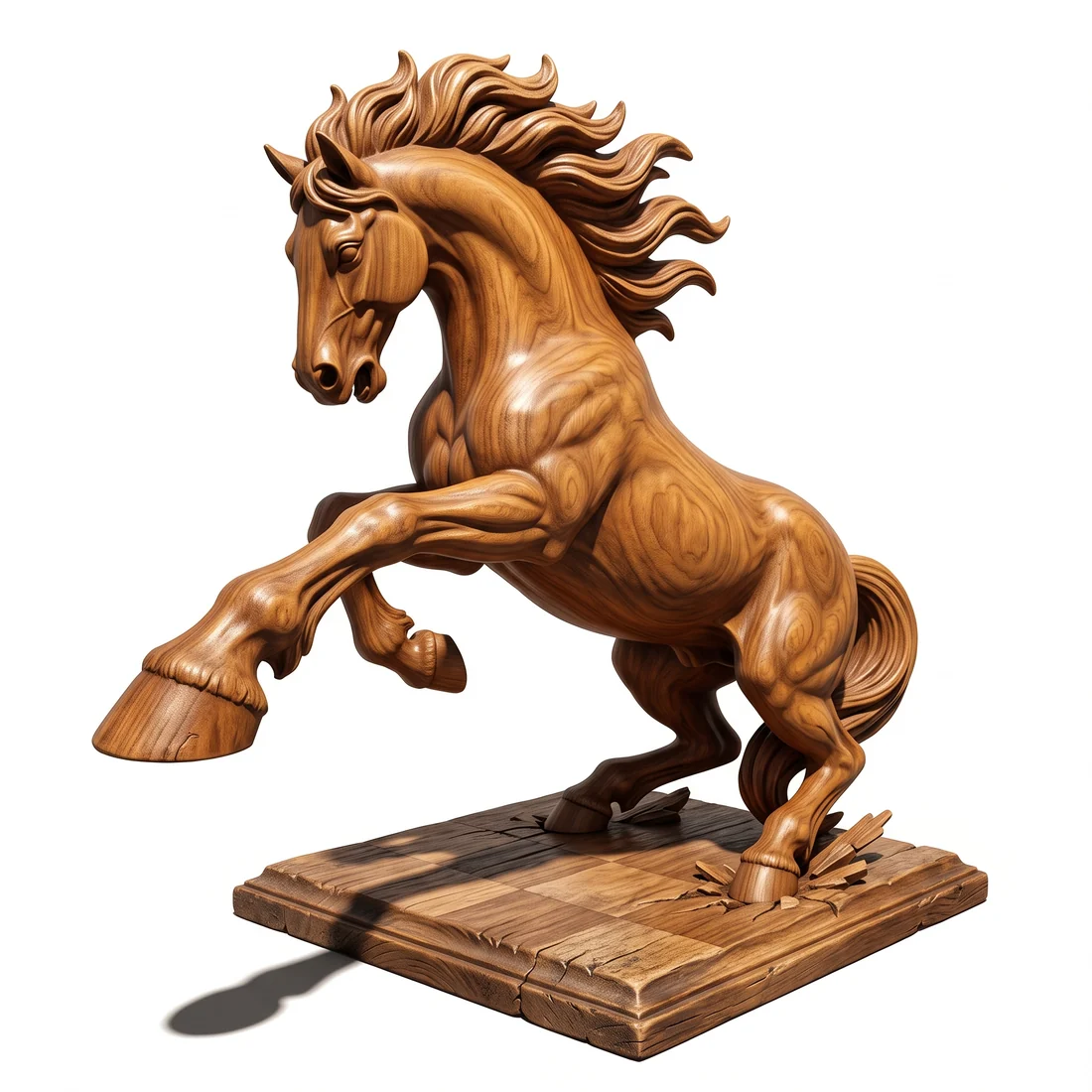
Studio suggests a few creative directions for your idea. Pick one, and about 30 to 60 seconds later you’re looking at your own original 3D illusion design.
Want something changed? Just ask in plain words: “make the mane longer” or “remove the fence”.
 Studio preview
Ready to engrave
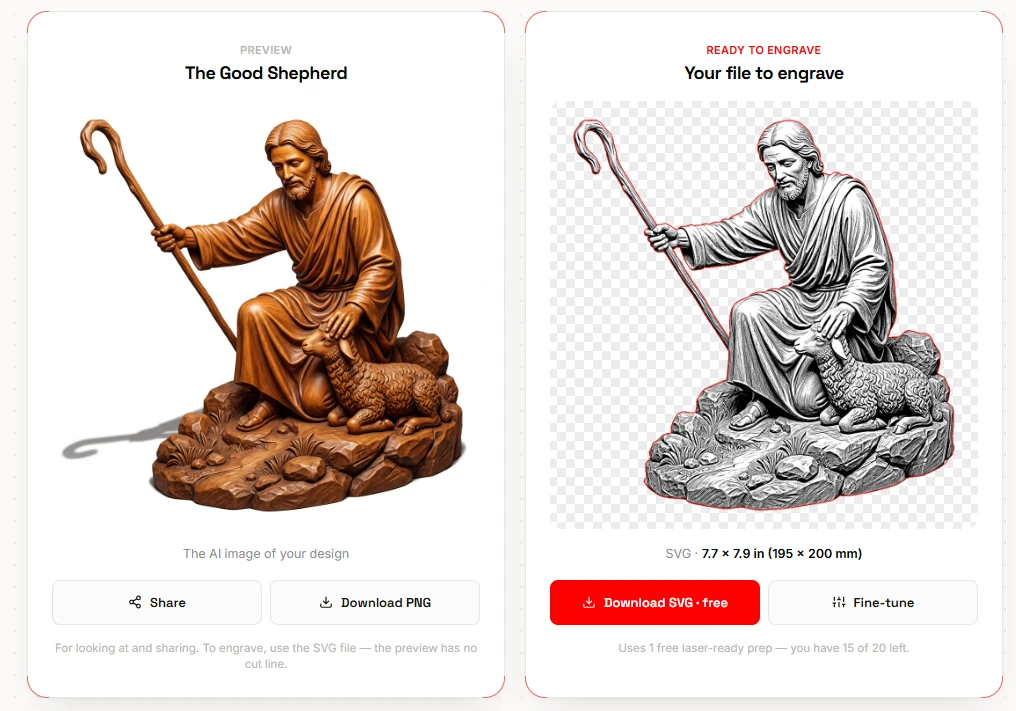
As soon as your design is ready, Studio makes your file to engrave right next to it. The background is removed, the image is tuned for engraving, and a cut line is traced around the shape. No extra steps.
Want to adjust it? Hit Fine-tune to touch up the cutout, the tone or the size, and save it as its own version. See every Laser Prep step.
Download and engrave
You get one SVG file with the engrave image and the cut line already lined up. Drag it into your laser software, size it for your material, set your speed and power, and start.
Every design and file is saved in Your designs, so you can come back and download it again any time.
No credit card · about 3 free designs every month
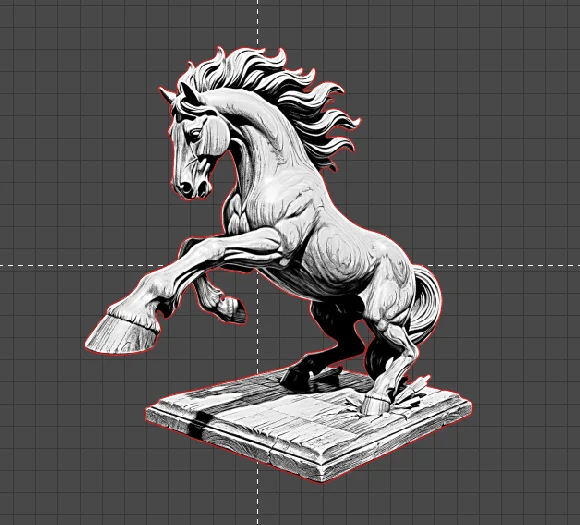
One SVG file. Two layers. Already lined up.
SVG is a standard design file that laser software opens directly. Yours holds two things:
- The engrave layer: the grayscale 3D illusion image your laser burns.
- The cut line: the outline around the shape, so your laser can cut the piece out.
Resize it to any size you want. Both layers scale together and stay lined up.
 Engrave layerCut line
Works with the laser you already own
- Diode
- CO2
- UV
- Fiber
- LightBurn
- xTool Studio
- WeCreat MakeIt
- Anything that opens SVG
Every machine and material behaves a little differently, so run a small test piece and set the speed and power for yours.
From the screen to the laser
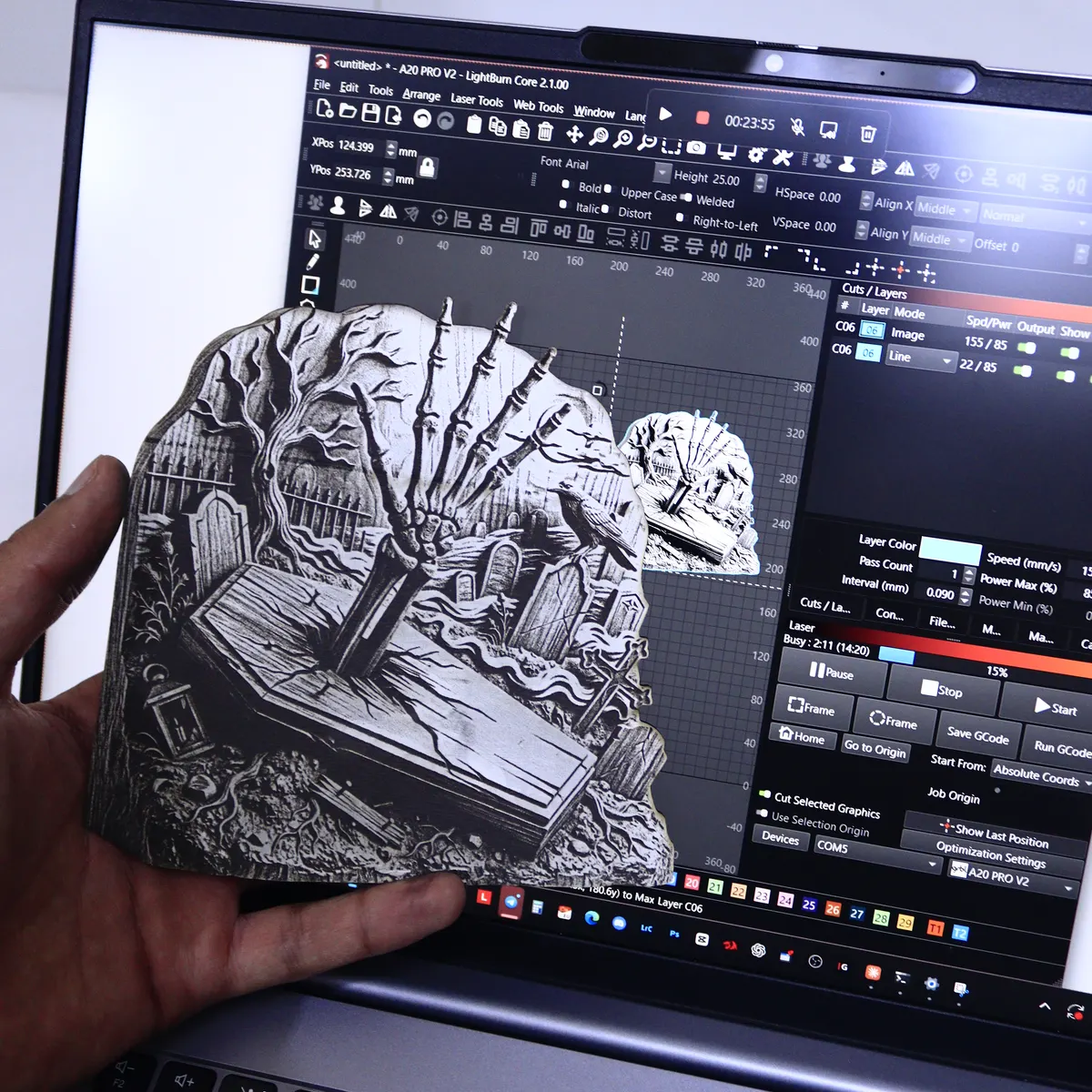
Designs straight out of Studio, and real pieces engraved from them.
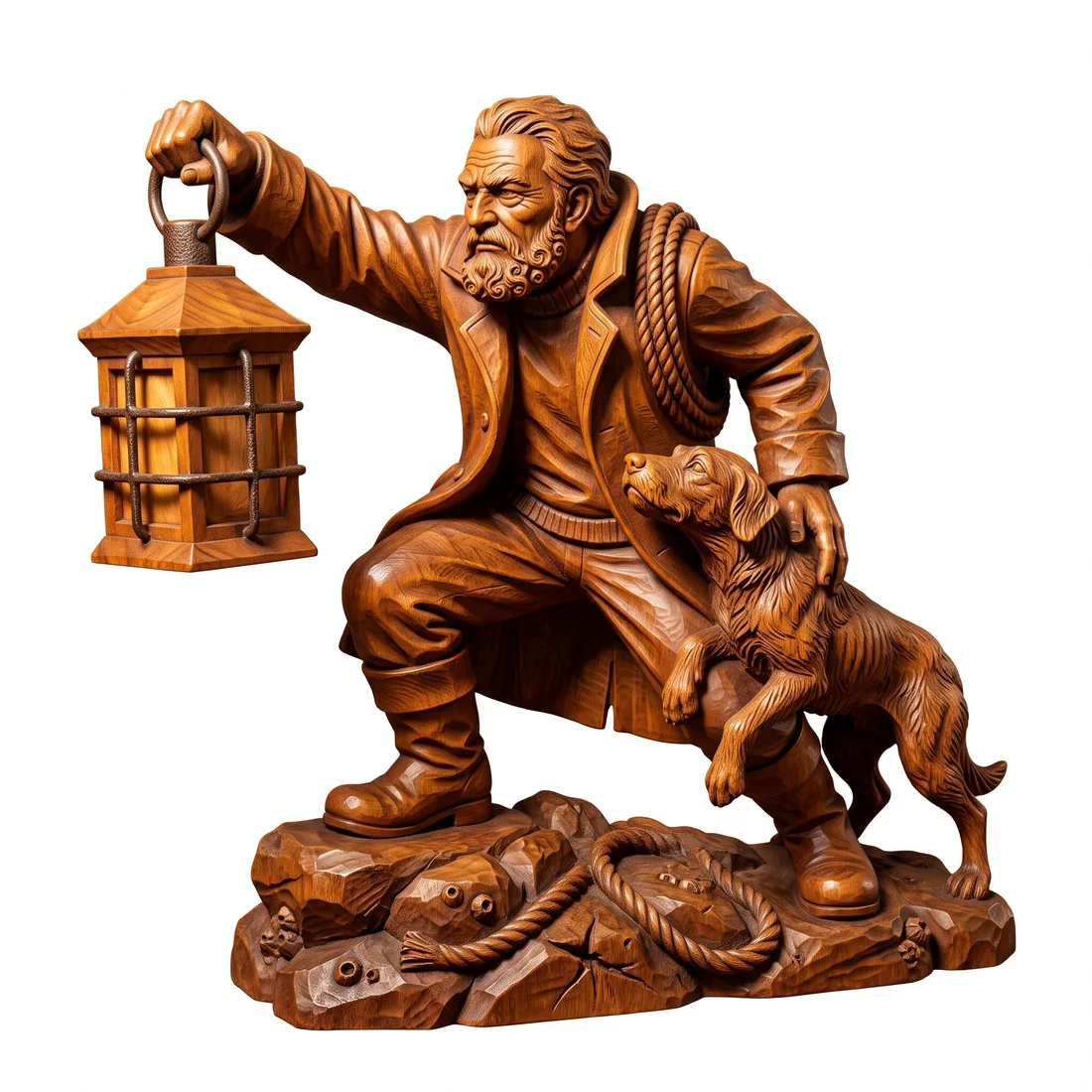 Studio designEngraved
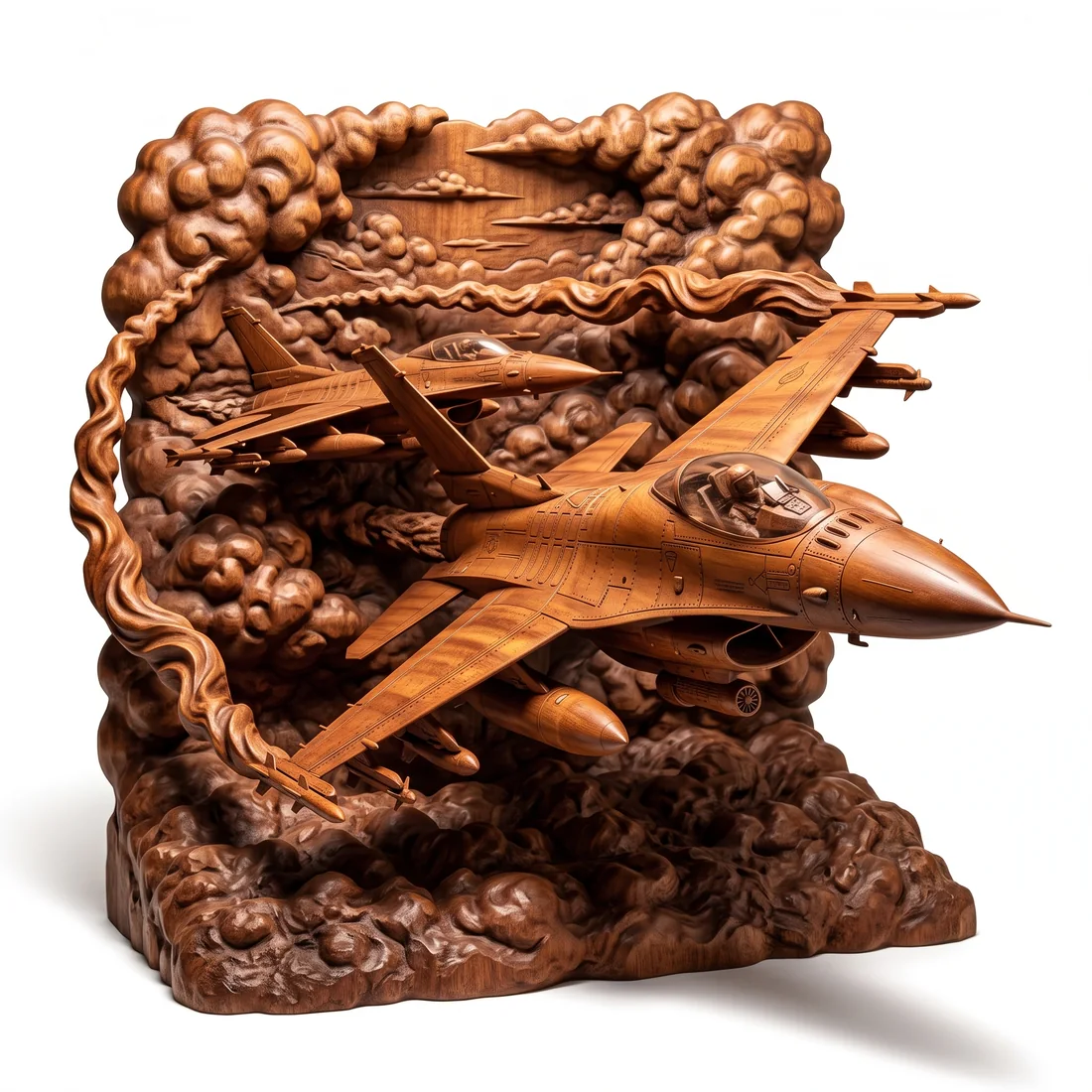 Studio designEngravedEngravingStudio designIn LightBurn
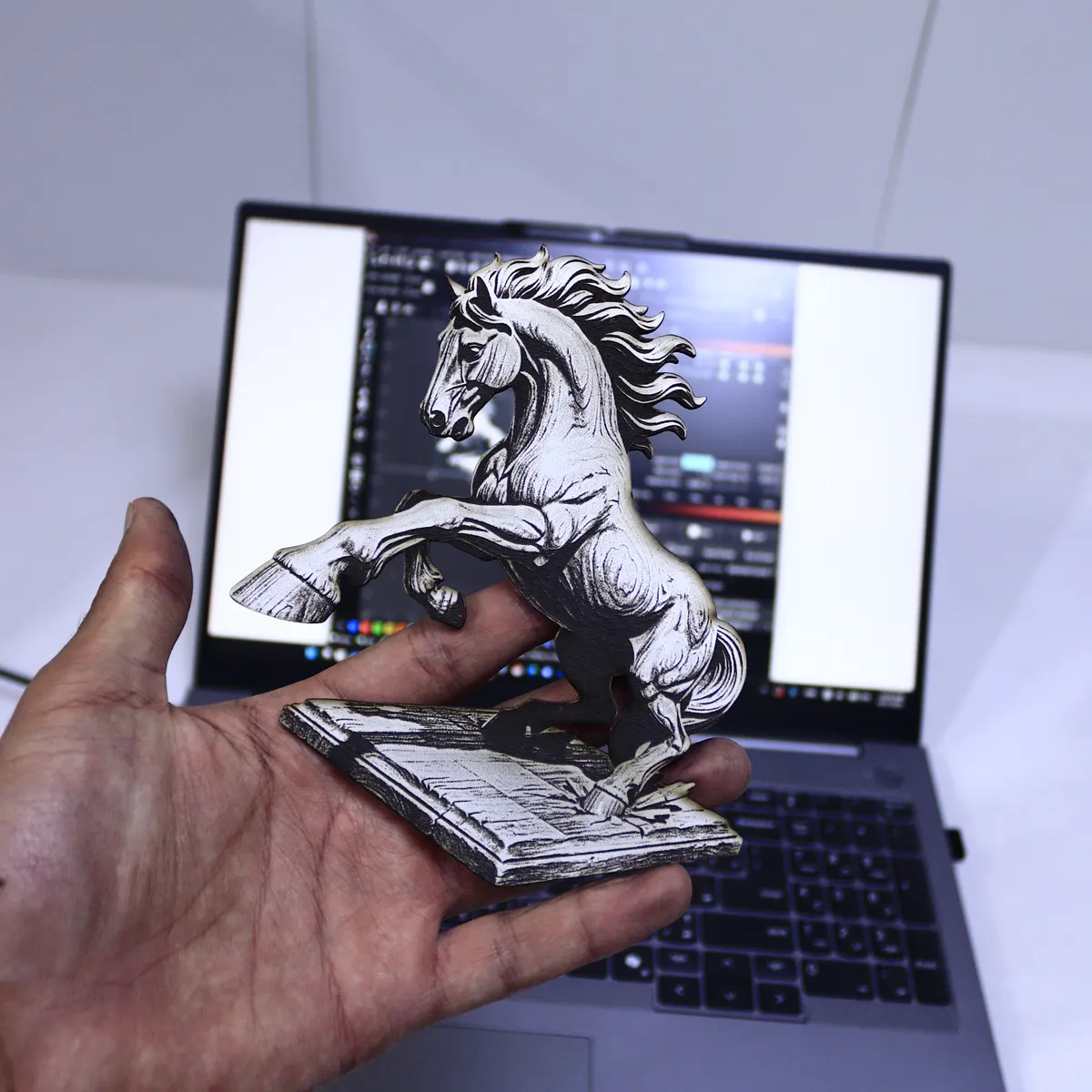 Engraved
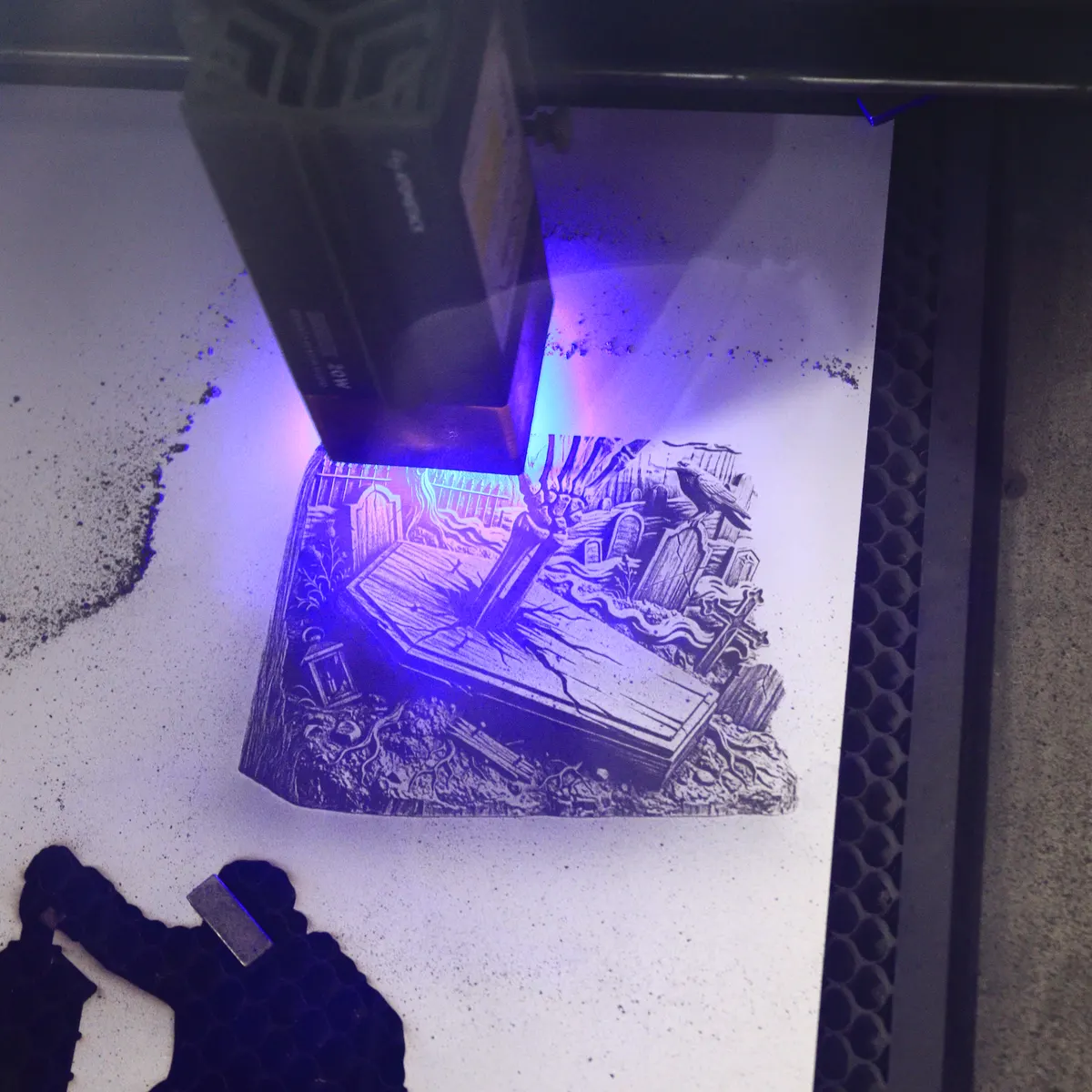 Engraving
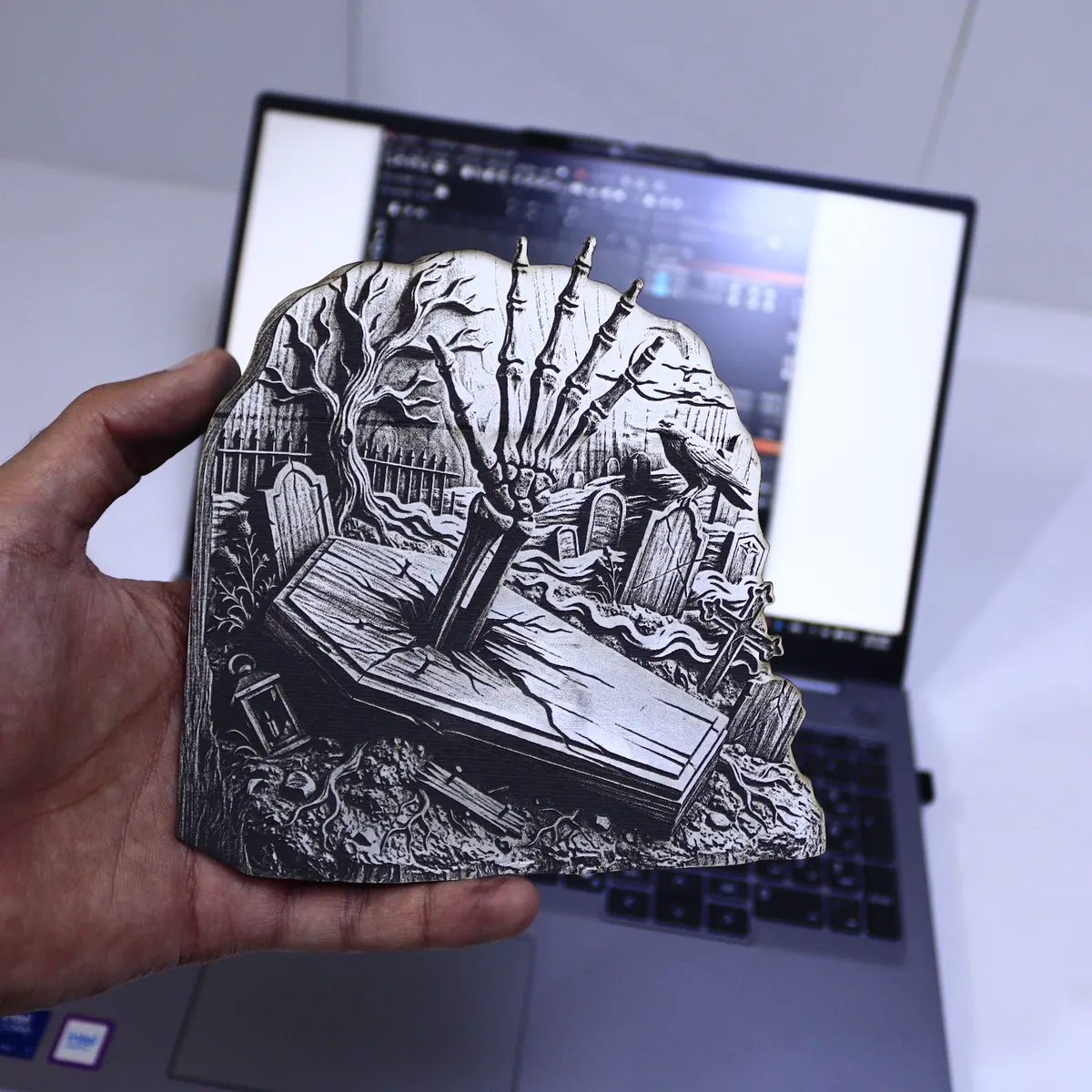 Engraved
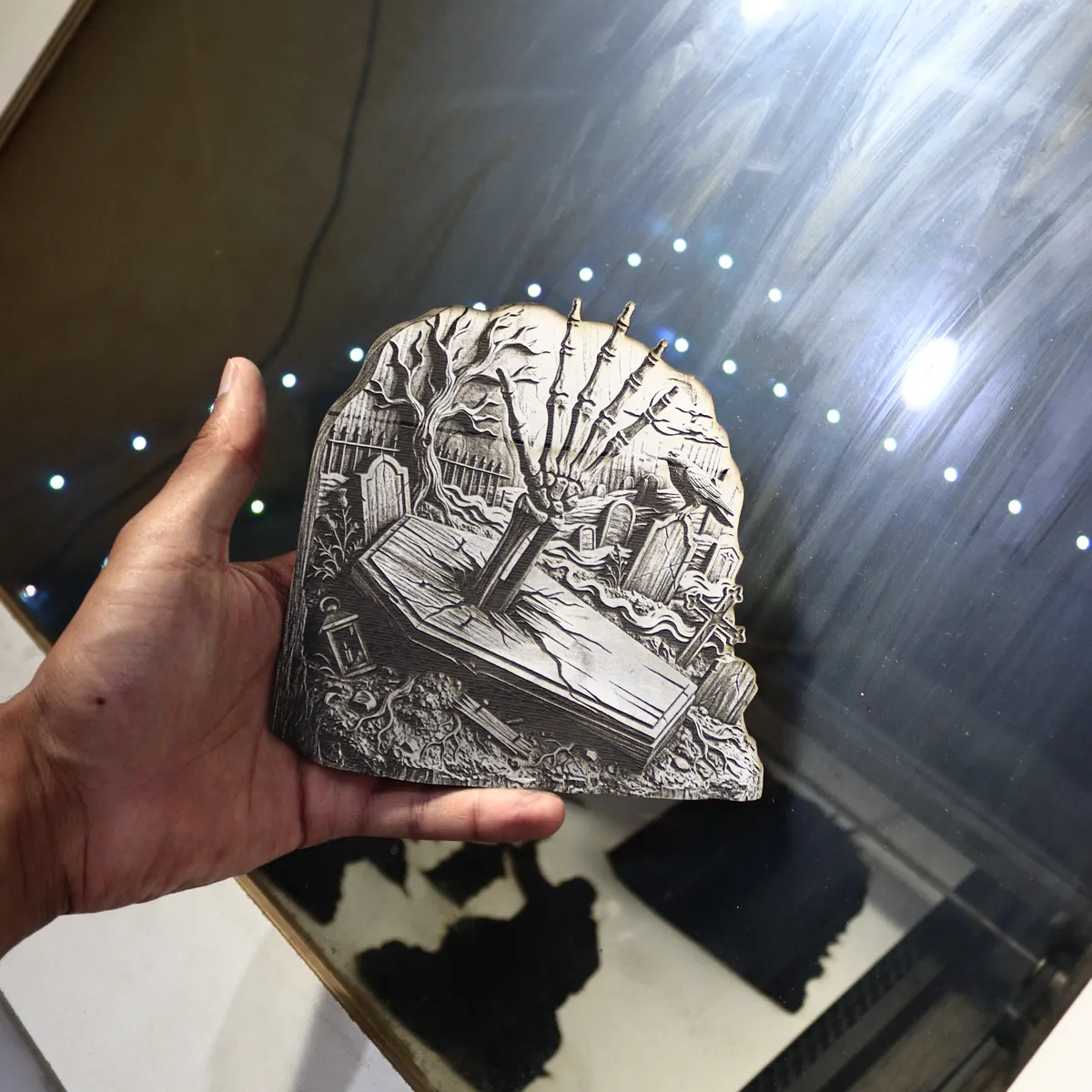 Engraved
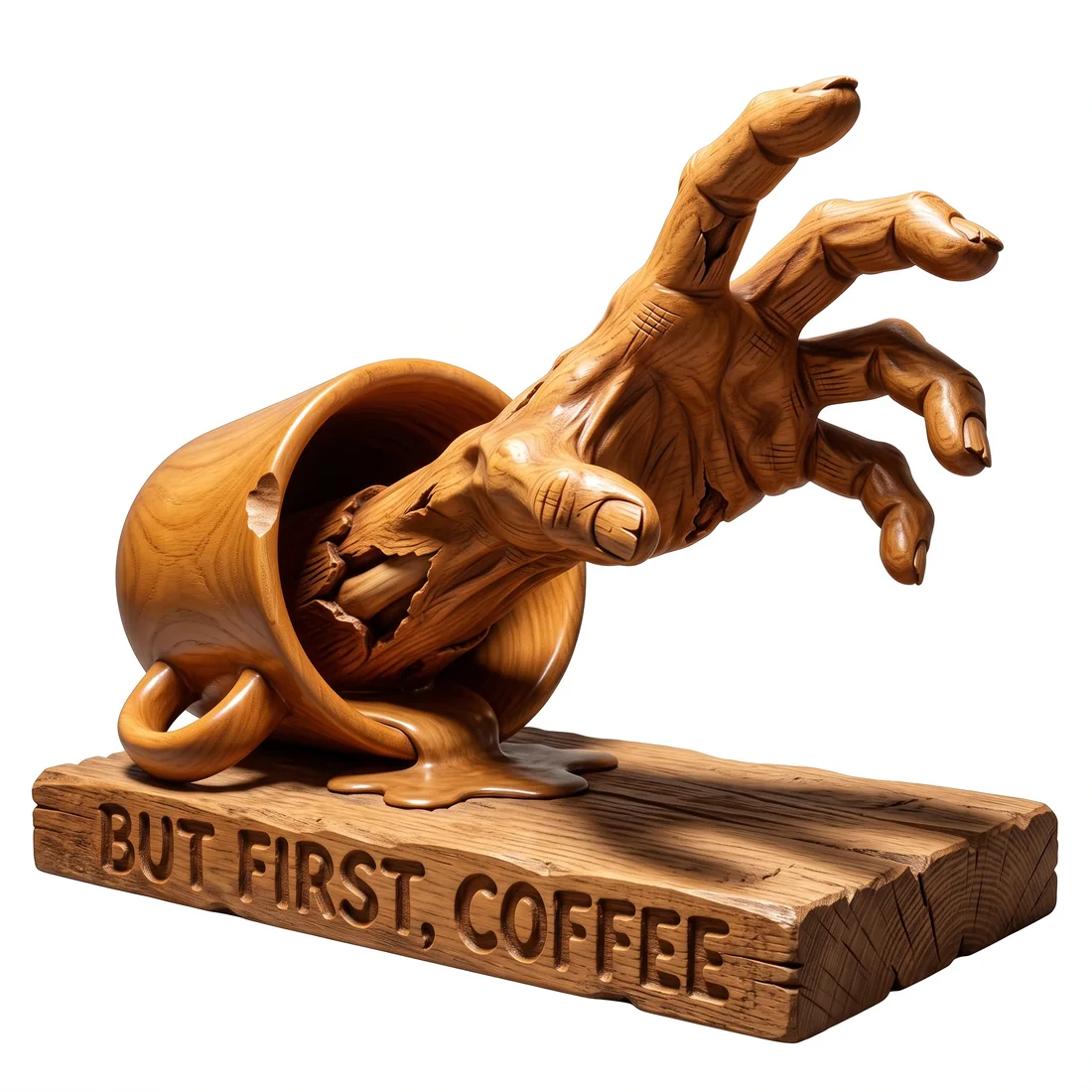 Studio design
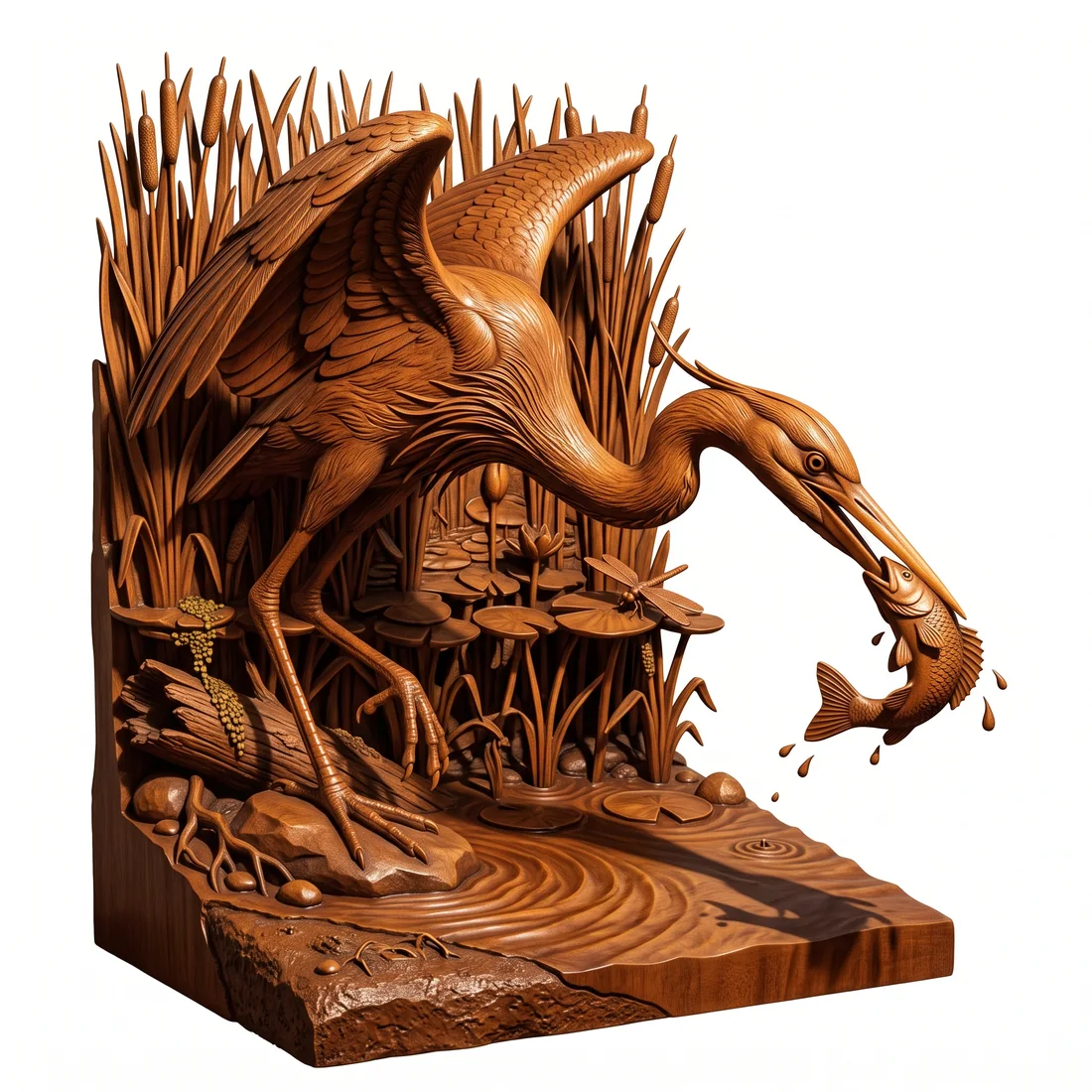 Studio design
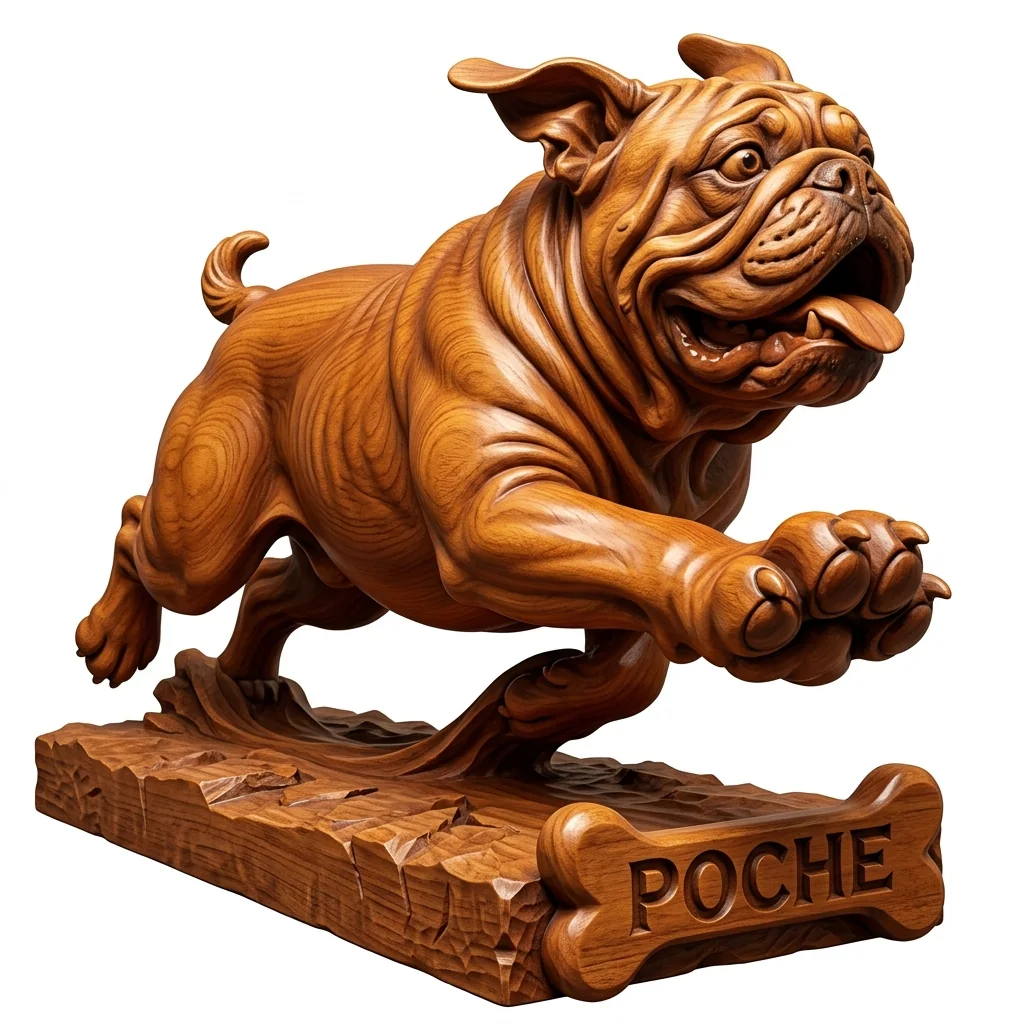 Studio design
The hard parts, handled
Studio writes the detailed prompt behind every design, so you never have to learn prompt wording.
You describe it in your own words. Studio designs it in the 3D illusion style.
No tracing, no masking, no separate outline file. Your file to engrave is ready right next to your design.
Don’t love a detail? Ask for the change and Studio updates the design.
Add a photo of a pet, a person or a place. It’s used for that design only and never stored.
Upload your own image and take it straight into Laser Prep.
Everything you make is saved
Every design and file lands in Your designs, ready for you when you come back.
Each design and its file to engrave are saved to your account. Nothing to export, nothing to lose.
Search by theme, mark your favorites, and sort your designs so the one you need is always easy to find.
Open a saved design and ask for a change in plain words. Studio updates it for you.
Touch up the cutout with a brush, adjust the tone, set the size and redraw the cut line.
Save different sizes or settings of the same design as separate versions, and switch between them.
Files you’ve already saved download again any time, without using up another file.
What people are saying
“It was very easy to use and I loved that it gave me different concepts to choose from.”
“I definitely like how this works, especially being able to change small details to get exactly what we are looking for.”
“This generated some great ideas without giving much detail in the request.”
“So far, I love what I see. It made the changes I asked for.”
“I like your new app, and would use it for the 3D look that it brings into the design.”
“This program is fantastic.”
Shared through Studio’s in-app feedback.
Start free. Upgrade when you want more.
- • 300 credits every month, about 3 designs
- • 3 ready-to-engrave files with a free account
- • No credit card needed
- • Try Essential free for 7 days, with 500 credits
- • Up to 9,000 credits a month
- • Unlimited ready-to-engrave files
- • Unused credits roll over, up to a limit
- • Cancel anytime
Good to know
Will it work with my laser?
Studio gives you an SVG file, and LightBurn, xTool Studio, WeCreat MakeIt and other laser software that opens SVG files can use it, on diode, CO2, UV and fiber machines. Every machine and material behaves a little differently, so run a small test piece and set the speed and power for yours.
What is an SVG file?
A standard design file that laser software opens directly. Yours holds two layers that are already lined up: the engrave image and the cut line around it. You can resize it to any size and both layers scale together.
Do I need design skills or AI experience?
No. You describe your idea in plain words (or add a photo) and Studio does the rest, including writing the detailed AI prompt behind the design.
Can I sell what I make?
Yes. You can engrave and sell as many physical pieces as you like from your Studio designs. What you can’t do is sell or share the digital files themselves.
Can I use a photo of my own pet, person or place?
Yes. Adding a photo is optional. It’s used only to create that one design, and it’s never stored or shown publicly.
Where are my designs saved?
In Your designs, in your Studio account. Every design and its file to engrave are saved there automatically, so you can open, change, fine-tune or download them again whenever you like.
Can I change a design after it’s made?
Yes. Open it from Your designs and ask for a change in plain words, like “make the mane longer”. You can also fine-tune the file itself: the cutout, the tone, the size and the cut line.
What does it cost?
Starting is free: everyone gets 300 credits every month, and a design costs 100 credits, so that’s about 3 designs a month. A free account also includes 3 ready-to-engrave files. Plans start at $14.99 a month when you want more.
Your first design is a few minutes away
Describe your idea, pick a concept, and see your own 3D illusion design come to life. Free to start.
No credit card · about 3 free designs every month