
Turn any image into a clean, laser-ready file
A step-by-step walkthrough of Graphiqly Laser Prep, from a raw image to an engrave layer and a matching cut line that drop straight into your laser software. Grab the finished sample file and test it on your own machine.
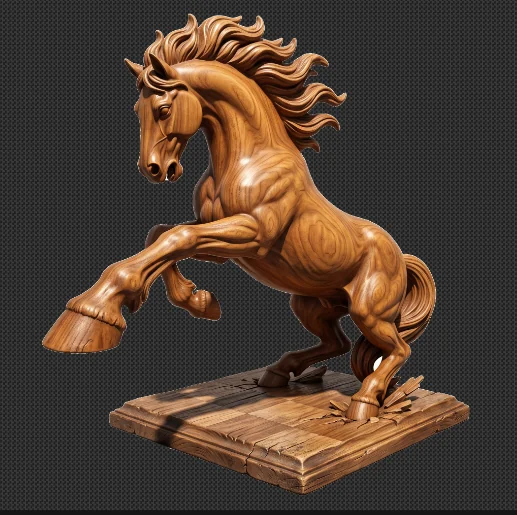 Your image
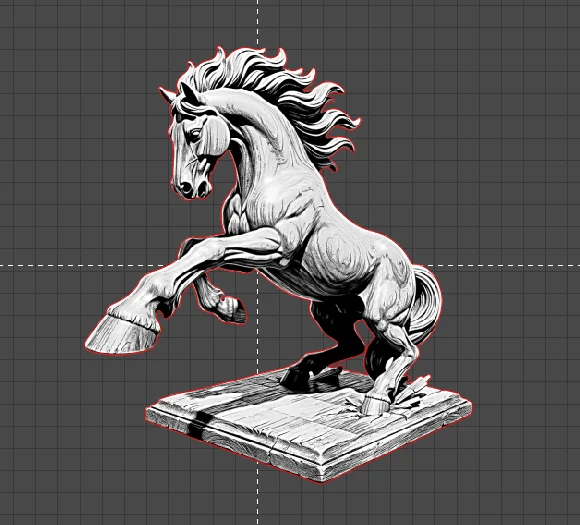 Laser-ready file
What you need
A design from Studio, or your own finished artwork as a PNG, JPG or WEBP.
Includes 3 Laser Prep exports, no subscription needed.
LightBurn, xTool Studio, WeCreat MakeIt, or anything that imports SVG.
Remove background & touch up
Laser Prep removes the background for you. Your job in this step is a quick clean-up, and one rule explains everything you’ll do here:
The cut line follows every edge of your cutout.
Every gap, hole and stray fragment becomes something your laser cuts around. Cleaning them up now is what gives you one smooth outline later.
Erase and restore with the brush
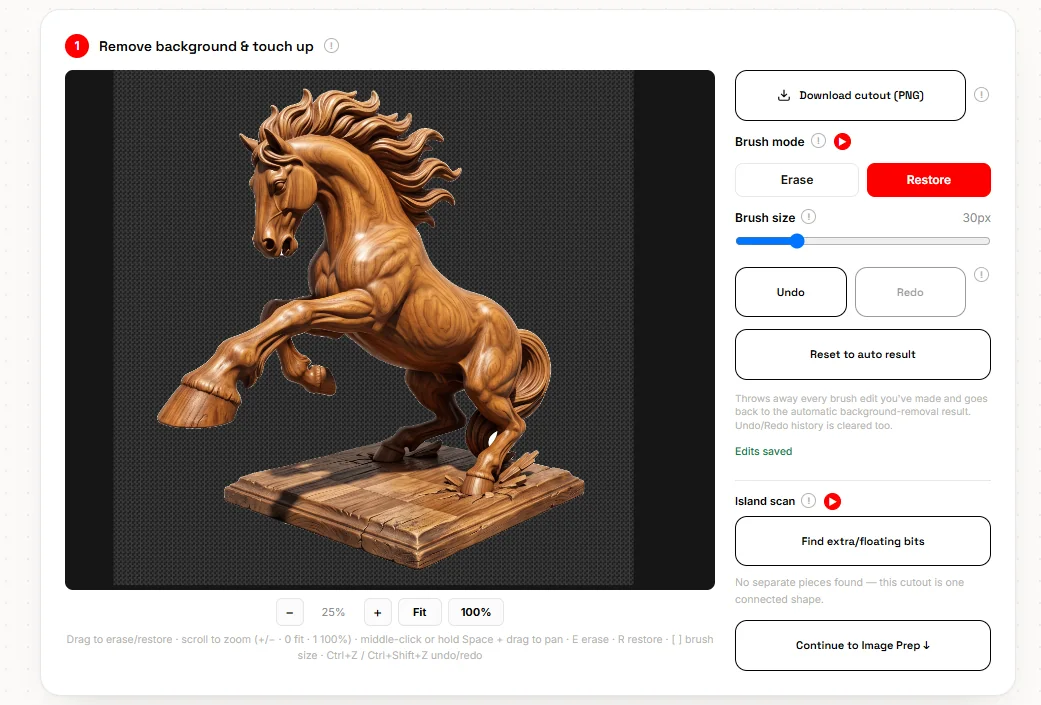
Use Erase to remove anything that shouldn’t be part of the piece. In the red circle, that’s a leftover patch of floor shadow.
Use Restore to fill small gaps inside the design. The tiny opening between the hind leg and the base (green circle) would otherwise become its own closed loop. The laser would trace around it, scorching the wood in that tight spot or leaving a fragile sliver that can snap off. Filling it keeps the outline in one clean path.
Some gaps belong to the design, and keeping them is your call. The point is to decide on purpose.
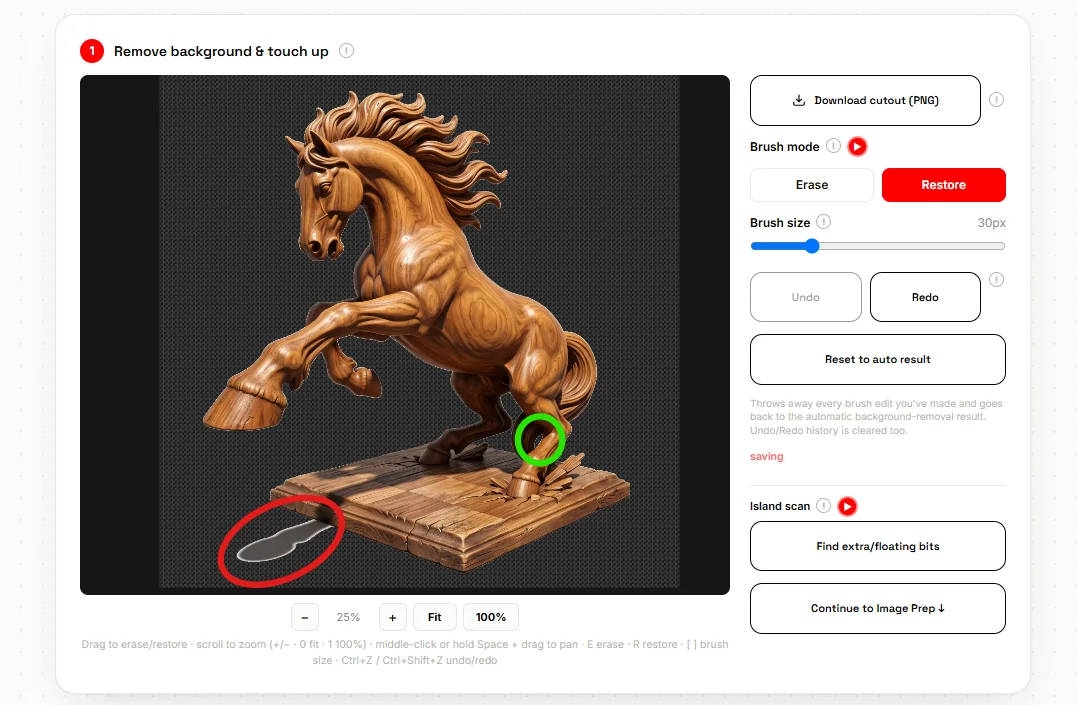
Shortcuts: E erase · R restore · [ ] brush size · Ctrl+Z undo · scroll to zoom · hold Space and drag to pan.
Remove floating pieces with the island scan
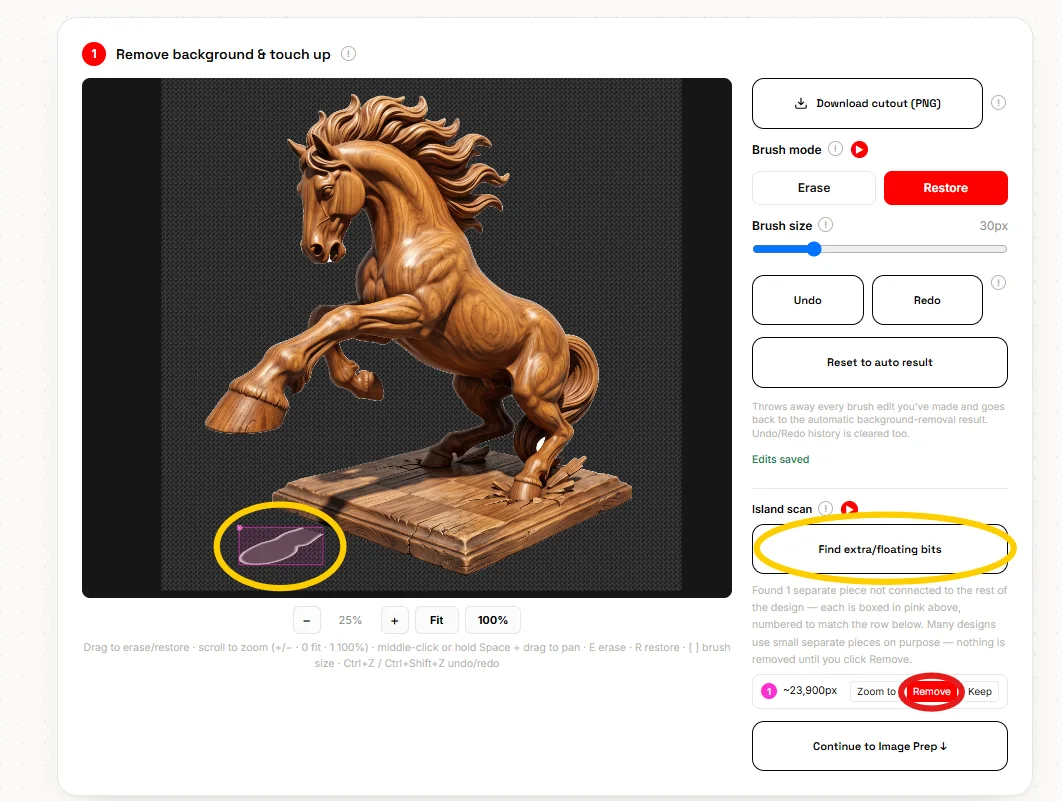
Erasing can leave bits that are no longer attached to the main shape. Here, trimming the shadow left one piece floating on its own. Left in, it would be cut out as a separate little part.
Click Find extra/floating bits. Each separate piece is boxed and numbered, with Zoom to, Remove and Keep buttons. Nothing is removed until you click Remove, because some designs use separate pieces on purpose.
Prep the image for engraving
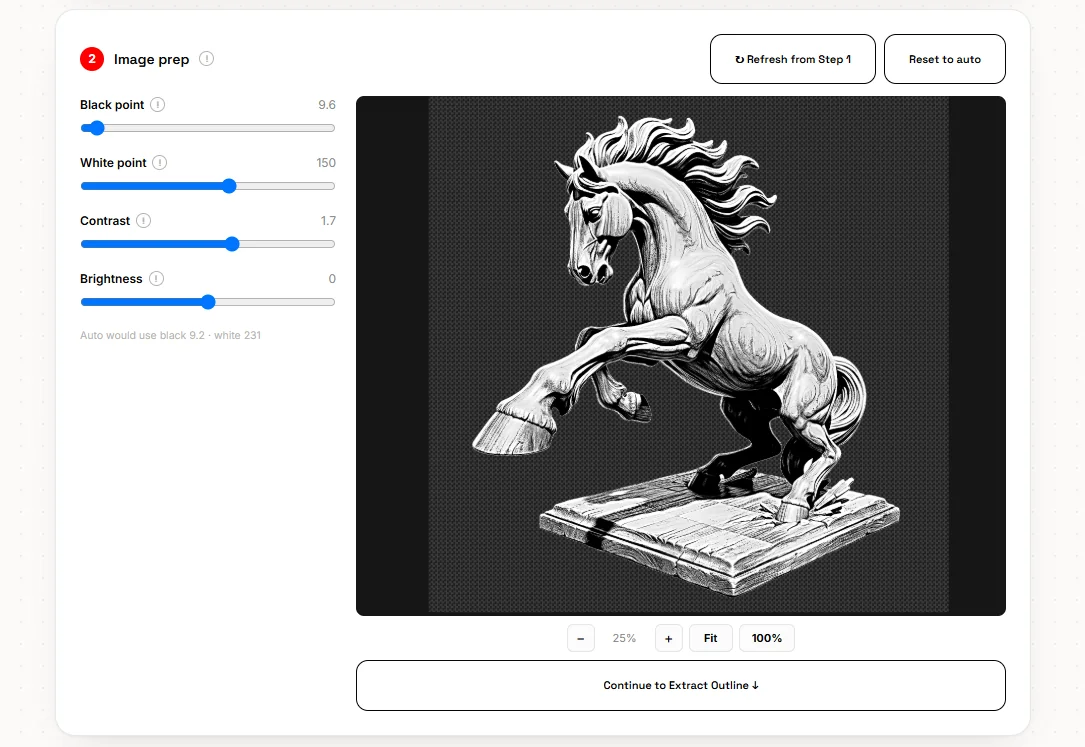
This turns your cutout into the grayscale layer your laser engraves. Start from the automatic settings and only nudge from there. Every image needs different values, so the numbers in this screenshot won’t suit yours.
- Black point
- Tones darker than this burn fully. Raise it for deeper shadows.
- White point
- Tones lighter than this stay bare wood. Lower it for brighter highlights.
- Contrast
- Pulls light and dark further apart for crisper detail.
- Brightness
- Shifts the whole image lighter or darker.
Went back and changed the cutout? Refresh from Step 1 pulls in your latest brush edits. Reset to auto starts this step over.
Extract the cut path
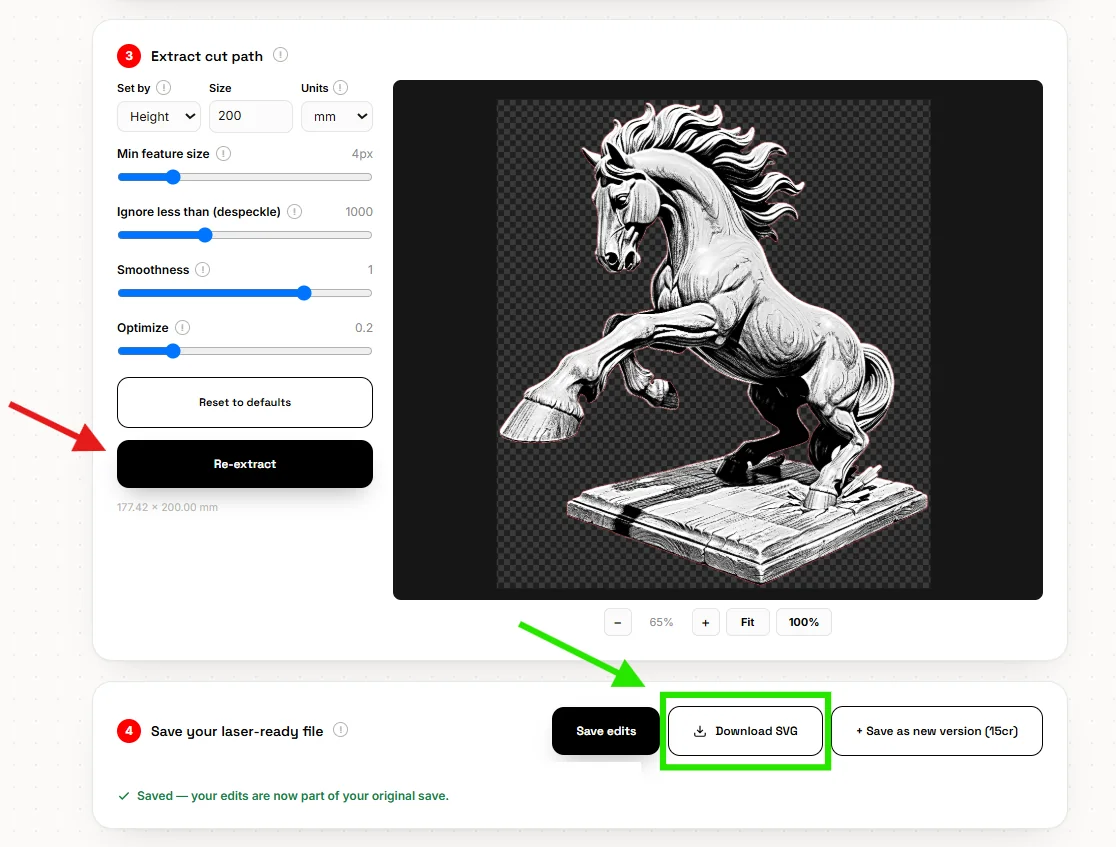
Laser Prep traces a cut line around your design and pairs it with the engrave layer from Step 2. The settings below control how closely that line follows the edges.
- Min feature size
- Details thinner than this are left out of the cut line.
- Ignore less than (despeckle)
- Drops tiny specks and loops below this size.
- Smoothness
- Higher gives rounder curves, lower keeps sharper corners.
- Optimize
- Simplifies the path so it has fewer points and cuts more smoothly.
The outline updates as you adjust. Click Re-extract anytime to rebuild it from your current settings.
Save and download
Save edits stores the file in your Studio dashboard so you can come back to it. Download SVG gives you the laser file itself, and works any time, saved or not.
Want to try a different treatment of the same artwork? Save as new version keeps its own settings, and you can switch between versions whenever you like.
Drop it into your laser software
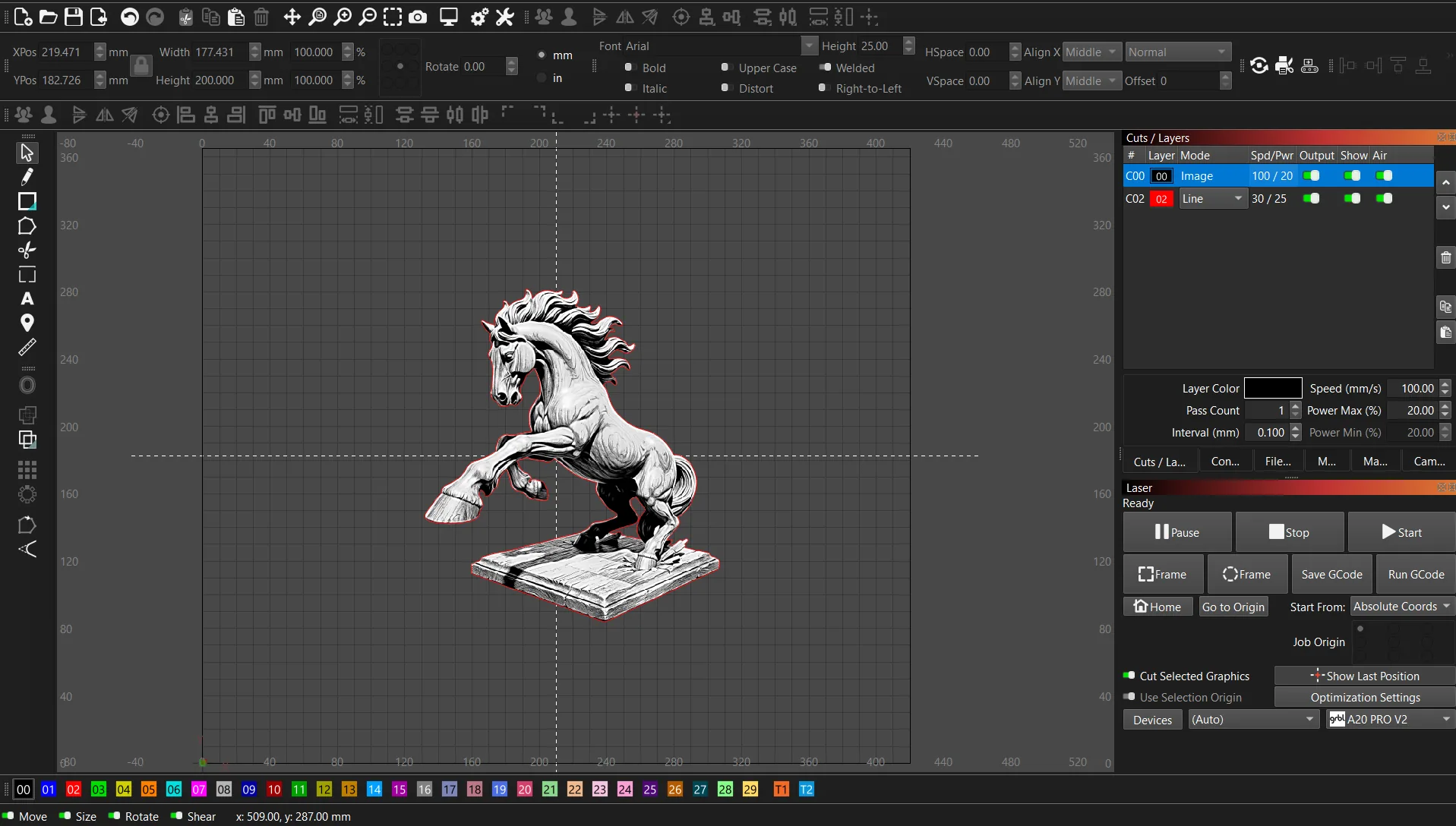
Drag the SVG into LightBurn, xTool Studio, WeCreat MakeIt or similar. It arrives as two parts, already lined up: the engrave image and the cut line, each on its own layer.
Resize it however you like.
Scale the design to fit your material, and the engrave image and cut line resize together, staying lined up. Set the speed and power for your own machine and material, frame it, and start.
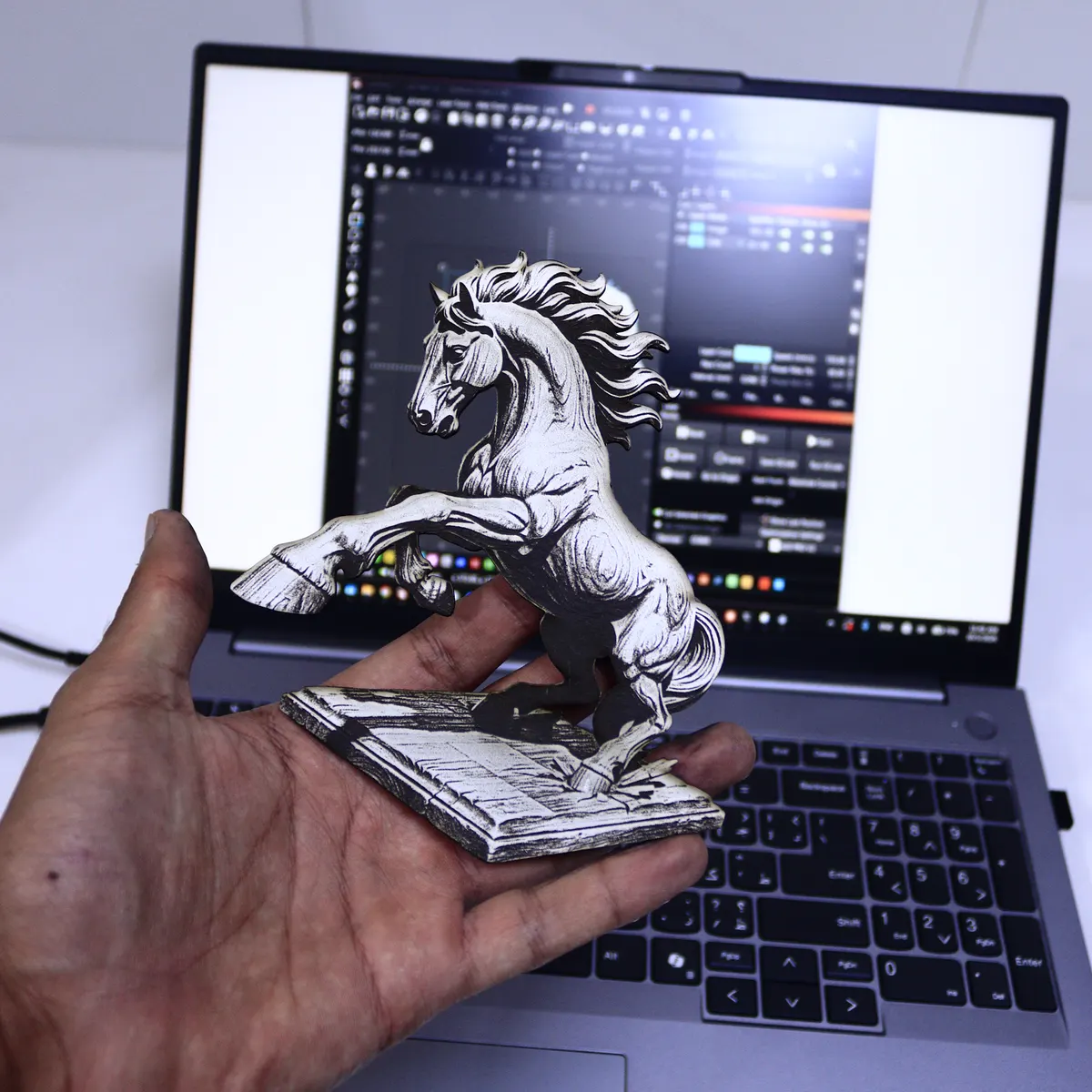
Try the finished file on your own laser
This is the exact file from this guide, prepped in Laser Prep and ready to engrave and cut. Enter your email and the download starts right away.
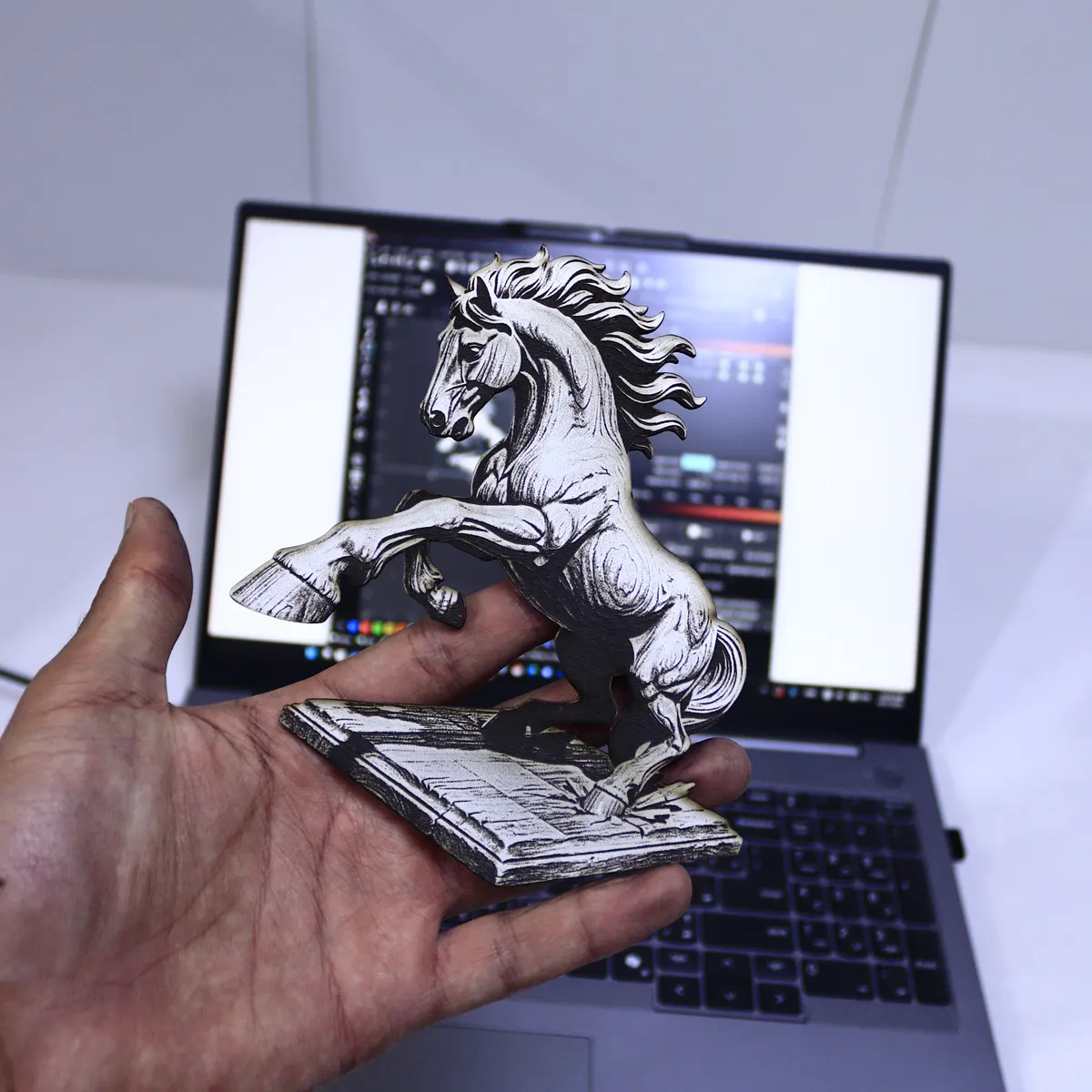
- SVG
- Engrave + cut layers
- Scales to any size
Questions
Will the file work with my laser software?
Yes, if your software imports SVG. That covers LightBurn, xTool Studio, WeCreat MakeIt and most other laser programs. The engrave image and the cut line come in on separate layers.
Do I have to use a Studio AI design?
No. Open Laser Prep, choose "Upload your own artwork", and prep any PNG, JPG or WEBP you have the rights to use.
Is Laser Prep free?
A free Studio account includes 3 Laser Prep exports, with no subscription needed. Studio Pro makes it unlimited.
Why fill small gaps instead of leaving them?
Every enclosed gap becomes its own tiny cut. In a tight spot the laser concentrates heat there, which can char the wood or leave a thin sliver that snaps off. Filling it keeps one clean outline.
Can I resize the file?
Yes, to any size you like. Scale it in your laser software and the engrave image and cut line resize together, staying lined up.
Can I save different variations of the same design?
Yes. "Save as new version" keeps its own set of settings under the same design, so you can switch between them without starting over.
Ready to prep your own?
Upload your own artwork or pick a Studio design, and have a laser-ready file in a few minutes.